

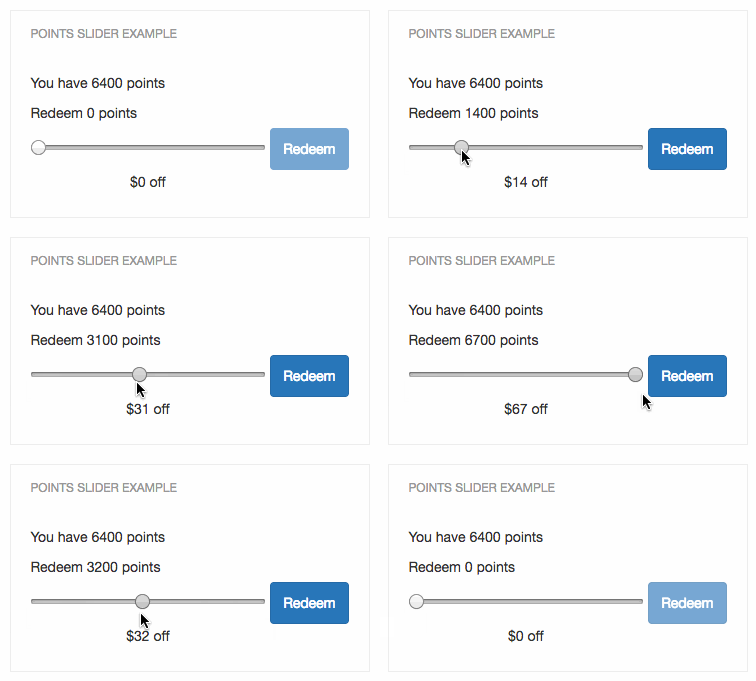
Step 1: Include our sample code in your checkout page
From the BigCommerce theme editor, copy the contents of our smile-points-slider.html code sample into a new theme file. You will need to make sure that this file gets added to your checkout page.This code snippet requires jQuery. If you do not already use jQuery on your site and wish to use the snippet as is, you will need to uncomment the jQuery script at the top of the snippet.
Step 2: Add your public API key to the script
Once you’ve located your public API key, paste it into thedata-channel-key attribute on the script tag at the top of the code snippet (excerpt below).
HTML
Step 3: Find your points product ID
Find the ID of the points product you wish to use with the points slider. You can do this by navigating to the way to earn in question within Smile Admin, and then looking at the ID in the last part of the URL. The ID will always be a number. To use a points slider, the points product it references must be a variable reward (one that supports rewarding in increments). Learn more about the differences between fixed and variable rewards.Step 4: Optional - Update your snippet’s language
The variables that start with “translate” (i.e.translateRedeemLabel) are in English by default. Any “translate” variable with the note “Optional translation:” above it can be edited and translated into the language you’ve set in your language settings.
Each phrase has a description, instructions, and an example above it. Follow the instructions to edit these phrases as needed.
Step 5: Add the slider to your checkout page
Add the following div to your checkout page where you would like the slider to appear. Update thedata-points-product-id property with the ID that you selected in the previous step.
HTML
Step 6: Apply discount to the cart
In order for this component to function, you will need to write the code that takes the generated discount code and applies it to the cart. TheapplyPointsPurchaseToCart function is triggered when the customer clicks the “Redeem” button. Within this method, you’ll have access to the discount code which will need to be applied to the cart. The code is available via pointsPurchase.reward_fulfillment.code.
The process of applying the discount code to your customer’s cart can be done via your cart’s API, or by a form field input simulated with JavaScript.